Why a Monitor Mode Can Vanish After You Add an Adapter
Understand the display capabilities your computer sees through a chain of cables and adapters.
In this article
The same monitor may show a long refresh-rate list when connected directly, then offer only two options through a dock. Mode selection relies partly on what your computer can read about the screen. It also depends on what the complete signal path can actually pass.
Read the display as a chain of components
Extended Display Identification Data, or EDID, carries display information such as model identifiers, preferred timing and support for additional modes. A monitor supplies those descriptors to a host over a communication route associated with the display connection. Some hardware also uses DisplayID or carries DisplayID extensions. Microsoft explains how Windows reads descriptors and can prefer qualifying DisplayID 2.0 descriptors for applicable attributes on Windows 11. In a direct connection, the graphics subsystem usually has a simpler view of the display than it does through several devices.
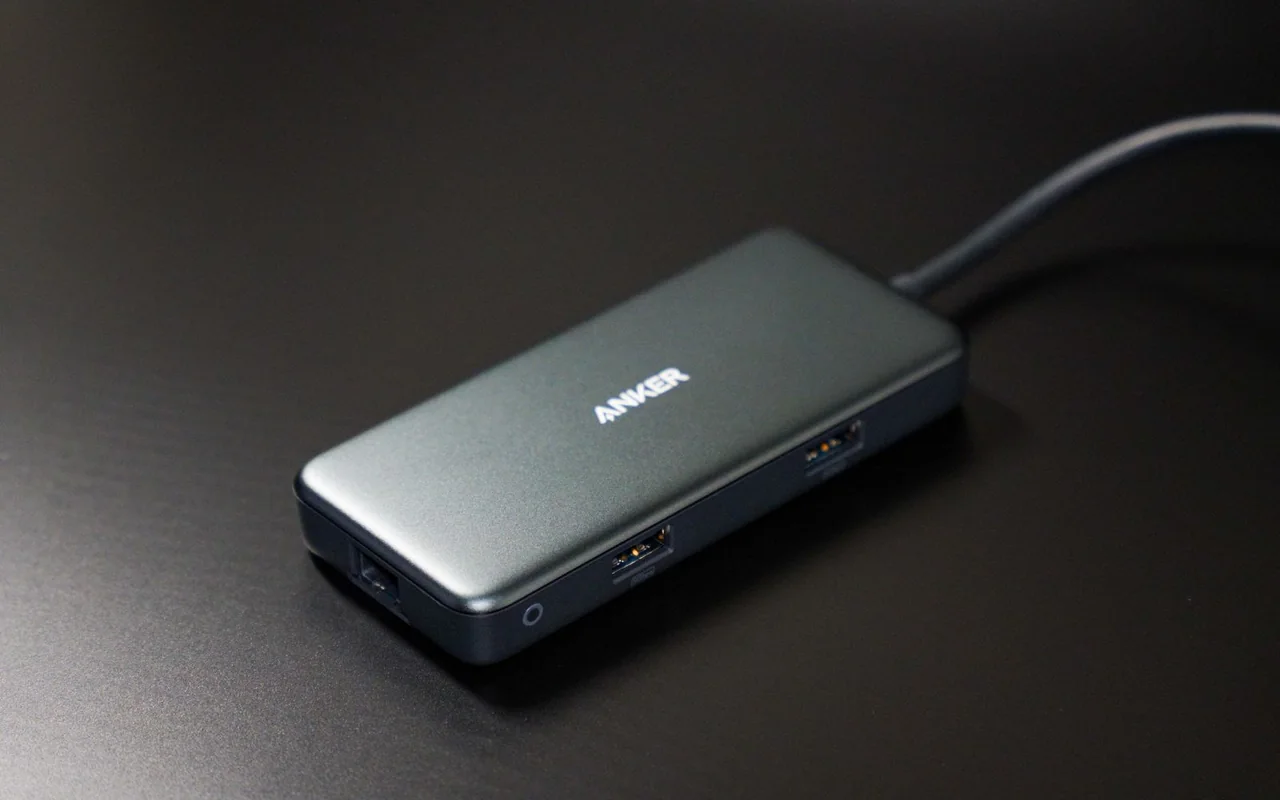
A hub, active converter, switch or dock may forward, substitute or limit what reaches the host. The adapter may also support a smaller set of transport modes than the display itself. A missing option could therefore mean the descriptors changed, bandwidth is lower, display topology is different, or software chose to hide a combination. An available option can still be unstable if the link fails under actual traffic. Start by measuring these as different observations.
Record what works with one direct connection
Connect the display to a compatible output using a short cable known to carry the target mode. Record the connector on both ends and choose a single-display configuration first. Note the operating system’s reported resolution, refresh and color information plus the monitor’s input-information screen if it has one. The operating system can show desktop scaling or rendered workspace size alongside the actual signal mode. Copy both when relevant so you can tell which changed.
Pick one mode you need, for example 3840 by 2160 at 120 Hz using full-color desktop output. Save the useful 60 Hz baseline as a second option. Check the monitor menu for input settings specific to an HDMI or DisplayPort input. An enhanced-bandwidth mode may be available under a different port setting. Mirror mode may limit the display to a compatible timing shared with another screen, while an extended desktop can choose modes independently.
Add one component and check the mode list again
Reconnect through only the adapter. Keep the same host, screen input and test resolution when the hardware allows it. If a mode disappears, note the smallest change that caused it. Compare monitor names as well as available timings. Change the cable separately before replacing both cable and adapter. Some USB-C docks allocate two high-speed lanes to DisplayPort Alternate Mode to leave lanes for SuperSpeed USB. Other paths may carry display data by tunneling and handle bandwidth differently. Consult the manuals for the host port and dock, including the supported display combinations with two outputs active.
If the target mode appears but occasionally blanks, lower its refresh temporarily and observe whether the chain stabilizes. Change one variable at a time so the result identifies the useful workaround. On a setup used for production, return to a stable mode instead of forcing timings. A vendor-supplied driver or monitor firmware fix is preferable when the vendor confirms that the advertised path should provide the needed mode.
Distinguish a mode from the work it supports
If the adapter reduces refresh but still provides clear text in a spreadsheet, keeping that adapter may satisfy the desk. A game test needs movement, and a color workflow needs its specified bit depth and sampling. Some systems can offer the top refresh only with another output setting or with display stream compression. Confirm the resulting signal meets the task before calling that mode restored.
Interpret the clues before making a settings change
An adapter can produce at least three useful kinds of symptom. A monitor appearing under a generic name with a limited list suggests the host received incomplete or substituted identification data. A properly named monitor with one missing top mode may still be fully identified while the graphics pipeline excludes a combination. A mode that visibly works for minutes before the display flashes indicates another condition than an absent option. It may point to signal quality, link training, sleep reinitialization or instability elsewhere in the chain. Keep these cases distinct in your test record. A new monitor setting is justified if the adapter or input manual says it changes capability, while more direct evidence is useful for a change involving a vendor firmware package. Either case is easier when you have not forced an unsupported mode or combined a cable change with a new display driver before checking the simple path.
Suppose a laptop drives a display at 144 Hz directly, shows the same monitor name through a dock at 60 Hz, and gains 120 Hz through the dock after a second screen is unplugged. Treat the direct mode, the dock mode with one display and the mode with both displays as three supported or unsupported combinations to verify. Data about the screen did not necessarily vanish. The system may be managing a shared path. The dock’s manual can list different modes for the specific input connection, host generation and a second output. A model that can drive two screens independently with one operating system might mirror or support fewer combinations on another. Check the particular laptop, operating system and host port before comparing a support article written for a different arrangement. An equipment name appearing in the system only shows what was identified at that point.
Try a cold connection as well as the wake path. With the usual screen input selected, connect using the maker’s recommended sequence and inspect its initial mode list. Then put the host to sleep and wake it using the same cable order and power state you ordinarily use. If the monitor returns on a different input or reconnects with fewer options only after wake, record that separately. Power-saving behavior can change how long a display or switch responds to a connection. Some monitors expose an input version or wake choice intended to help with compatibility. Check vendor descriptions rather than using an unfamiliar toggle as a random test. Save any original setting you change so restoring a known configuration stays easy. If the device lacks a support path for the intended route, the working direct connection makes a good fallback for a presentation or an important job.
Match a practical need to the result
One desk needs a stable 60 Hz document display and values normal text rendering over fast motion. Another needs 120 Hz for a specific game or lower display latency. A third uses an HDR preview and cares about output format, calibration and consistent luminance. Set a target around the role and write it down using the reported output from the monitor. Repeatedly reconnecting to reveal a high number is not a stable configuration. If the existing dock can perform the required document job but cannot provide the game mode, connecting the gaming screen directly and leaving a smaller display on the dock may be a cheaper way to preserve both roles. Keep the everyday cable arrangement simple enough that you can tell which route is in use. A configuration that only works through an undocumented chain is hard to troubleshoot when someone returns the room to a different setup.
Check the source of any adapter bandwidth claim. A product page can advertise a single maximum resolution even when its footnotes limit refresh, operating system, dynamic range, sampling or how many displays are connected. A USB-C charging or data specification alone is not a guarantee of display output. Some docks provide native video, some tunnel it over a supported transport and some use a separate graphics solution with its own drivers. Identify which category the chosen output belongs to before expecting a driver update to change the behavior of a different video path. A supported direct path helps distinguish a panel restriction from details of the adapter. If both paths behave the same, the monitor input or host mode policy deserves a closer look than swapping multiple cables based solely on a generic label.
When you need support, give them the model names, input positions, operating system build and a short matrix of working combinations. Add the smallest reproducible failure, such as “one display works at desired refresh on direct cable; same input and cable through output 2 loses the mode even with display 2 disconnected.” If the maker asks for diagnostic data or a descriptor dump, use its ordinary supported collection steps. The basic matrix avoids the uncertainty of remembered steps that did not happen with the same configurations. A clear change order helps you choose a replacement or a stable workaround even if the issue requires firmware work the user cannot do. Keep the fastest option that behaves consistently in the tasks that matter, then consider hardware only when a particular supported mode remains unavailable.
Keep a short compatibility record
Record the exact working route and the refresh setting alongside the cable and input labels. When a dock change removes a timing, the record gives you a known place to start and a reduced set of suspects. It also tells a second person which input can run the required mode without trial and error.
Add a fallback mode to the record with its one noticeable trade-off, such as lower refresh or the need to disconnect another output. The point is knowing how to get to the presentation or edit that matters while you wait for a more permanent fix. A usable fallback keeps an investigation from becoming a reason to rebuild a working desk before a deadline.